
Detail Panel
The asset detail panel is located on the right side of the interface. When you select an asset in the grid view, this panel will display its complete properties, interactive previews, and associated editing tools in real-time.
1. Functional Module Description
The detail panel consists of several collapsible logical blocks, allowing you to adjust the displayed content as needed:
- Basic Info:
- Displays tailored technical metadata dynamically based on the selected asset type:
- All Assets: Displays file size, format extension, date added/modified, and the local relative path (with one-click copying).
- Images: Displays resolution, color space (e.g., SRGB), bit depth, and pixel density (DPI).
- Audio: Displays duration, channel count (mono, stereo, or multi-channel), sample rate, codec, bitrate, and non-silent start time.
- Videos: Displays duration, frame rate (FPS), video codec, audio codec, and total bitrate.
- 3D Models: Displays triangle face count, vertex count, material count, mesh/node count, bone/joint count, and animation segments count.
- Spine Animations: Displays Spine runtime version, bone count, slot count, and collapsible lists of all skin names and animation names.
- Fonts: Displays font family name, style name, total glyph count, and a collapsible copyright license notice.
- Atlas Sheets (Atlas / Plist): Displays the count of sliced sub-sprites and a list of all associated physical textures.
- Displays tailored technical metadata dynamically based on the selected asset type:

- Interactive Preview (Live Preview):
- Integrates high-performance rendering modules to support real-time, high-fidelity preview operations for various asset formats. For detailed functions, please refer to the Asset Preview chapter.

- Asset Information Management (Metadata):
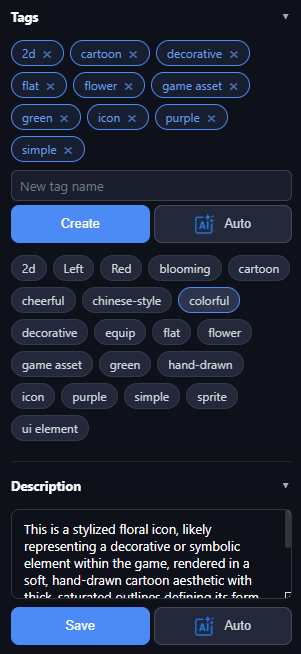
- Provides areas for tag labeling and note text editing. You can add custom tags to assets or record detailed design descriptions.
- Image Tools:
- Appears only when an image asset (such as PNG, JPG, WebP) is selected, providing one-click processing functions for rotation, flipping, compression, etc. For details, please refer to Image Tools.
- Auto Cutout / Slice: Available after the Tinify button (same as the right-click menu entry) for PNG, JPG, JPEG, WebP, and BMP assets that are not Sprites aggregates.
- Steam release note: Due to platform review policies, the TinyPNG (Tinify) one-click compression entry is hidden in the Steam build; rotation, flipping, and resize are unaffected—watch for future updates.

2. Core Functional Features
- One-stop Data Summary: Automatically extracts and integrates physical file attributes with custom metadata.
- Persistent Metadata: All tag labels and note descriptions are automatically saved to the asset library database; no manual saving is required.
- AI Intelligent Enhancement: Supports content analysis via AI models to automatically generate tags or description text. (Not available in the Steam build due to platform review policies; watch for future updates.)
3. Operation Guide
Basic Interaction
- Block Folding: Click the title bar of each functional block (e.g., "Current File Basic Info") to fold or expand it, optimizing interface space.
- Path Quick Actions: Supports clicking path text for one-click copying, convenient for precise referencing in team communication.
Multi-select Aggregate Mode
When multiple assets are selected, the detail panel automatically switches to Multi-select Aggregate Mode:
- Common Tag Display: The panel only displays tags shared by all selected items (i.e., the tag intersection).
- Batch Labeling: Adding or deleting tags in multi-select mode will apply the operation to all selected assets simultaneously.
- Tip: To ensure smooth operation, interactive previews and note text editing are temporarily disabled in multi-select mode.