
Asset Grid
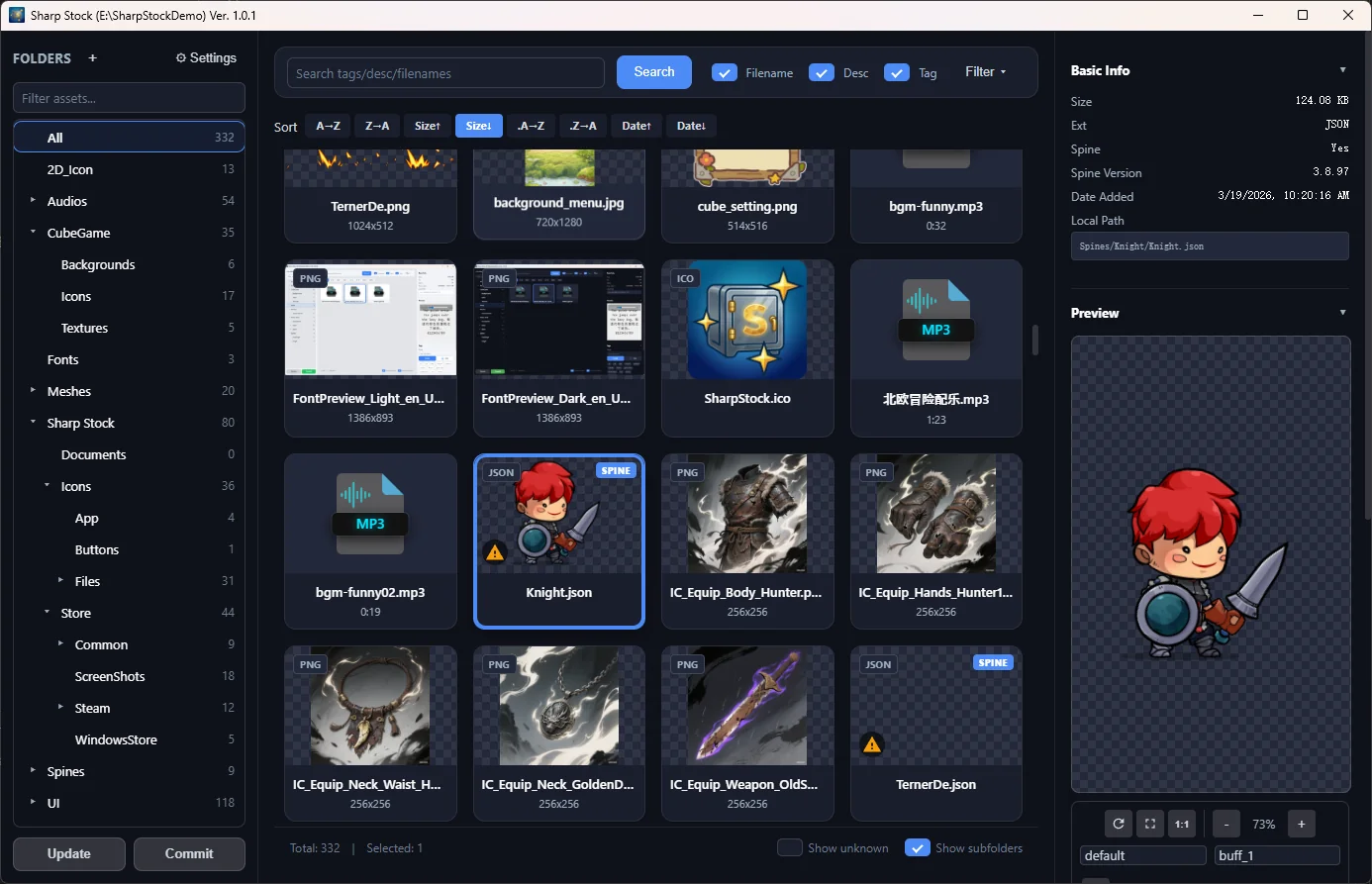
The asset grid is the core work area of Sharp Stock, displaying all resource assets within the current folder and filtered results in an intuitive card layout.
1. Interface Element Description
- Asset Card:
- Visual Preview: Automatically displays image thumbnails, Spine animation snapshots, or corresponding file type icons.
- File Name: Displays the full filename of the asset.
- Smart Alerts (Spine only): When recognized as a Spine asset, an amber warning badge will appear in the lower-left corner of the card if any of the following conditions are met (hover to view details):
- Version Conflict: The actual version does not match the "Default Spine Version" defined in Settings.
- Compatibility Risk: Relevant options are enabled and the current file extension is
.skel.bytes.
- Sorting Tools: Located above the grid, supporting ascending or descending sorts by filename, file size, extension, modification date, etc.
- Smooth Experience: Built-in high-performance virtual list technology ensures a silky smooth scrolling experience even when handling tens of thousands of assets.
2. Functional Features
- High-Performance Rendering: Renders only the visible area on the screen, significantly reducing memory usage.
- Asynchronous Thumbnails: Thumbnails are automatically generated and cached in the background, ensuring instantaneous loading upon subsequent visits.
- Batch Management Support: Compatible with standard multi-select logic (Shift for continuous selection, Ctrl for non-continuous selection).
- Quick Audio Audition: Audio asset cards feature a play button in the center; click to quickly preview (does not auto-play on hover to ensure a quiet environment).
3. Operation Guide
Mouse Interaction
- Single Select: Click an asset card to select it and view details in the right panel.
- Multi-select: Use
Ctrl + Clickto toggle selection status, orShift + Clickfor a continuous range selection. - Double-click: Expands the preview by default; you can also change it to None or Open with Default App under Settings · Interface.
- Context Menu: Bring up type-specific functional menus. See Context Menu for details.

Drag-and-Drop Interaction
- Quick Export: Supports dragging selected assets directly from the software window to local folders or other software (e.g., Photoshop, engine editors).
- Directory Move: Drag one or more assets to a destination in the left folder tree. If names already exist there, Sharp Stock lists every conflict in the current move before changing any file. Choose Replace, Keep Both, or Skip for each item, then confirm the batch.
4. Shortcut Key Guide
| Shortcut (Windows) | Shortcut (macOS) | Description |
|---|---|---|
| Ctrl + A | Cmd + A | Select all assets in the current view. |
| F2 | Enter or F2 | Perform a rename operation for the currently selected asset. |
| Delete | Cmd + Delete / Backspace | Move selected assets to the trash (simultaneously deleting local files). |
| Ctrl + G | Cmd + G | Quickly locate and expand the current asset's directory in the left navigation tree. |
| Alt + C | Cmd + Option + L or Option + C | Copy the asset's dedicated positioning link (for team communication or document reference). |
5. Empty States and Prompts
When there are no assets to display in the grid, Sharp Stock displays friendly empty state messages depending on the context:
Empty Folder Prompt: When the currently selected folder does not contain any assets, the grid displays "Drag and drop files here to import assets". This usually appears when a folder is newly created or when using the library for the first time. Simply drag supported files (such as images, audio, 3D models, Spine animations) from your computer and drop them into this area to import them.
No Match Prompt: When the folder contains assets but none match your active filters (type, size, unknown types settings, or keyword searches), the grid displays "No assets match the current criteria". You can click the "Reset" button below the message to clear all search keywords and filter criteria to reload your assets.