
Settings Guide
This chapter provides a detailed explanation of each configuration item in the Sharp Stock settings panel.
Click the ⚙ icon above the folder area in the left sidebar to open the settings panel. The panel uses a standard sidebar navigation structure—the left side contains functional categories, and the right side contains the corresponding configuration details.
1. Interface Preferences
This page is used to configure the software's appearance and display. The settings are grouped into two areas: Display and Interaction.
Display
- Interface Language: Supports Simplified Chinese, Traditional Chinese, English, Spanish, Vietnamese, Japanese, Russian, Korean, and Brazilian Portuguese. Interface text will update immediately after switching.
- Theme Scheme: Offers three visual options: Follow System, Dark Mode, and Light Mode.
Interaction
- Default Double-Click Action: Sets the action performed when double-clicking an asset card. Options include None (double-click does nothing), Expanded Preview (opens the expanded preview, default), and Open with Default App (opens the asset with the system's default application).

2. Asset Settings
This page allows for configuring display, validation, and warning rules for specific asset formats.
Spine Asset Settings
- Preferred Spine Version: Used for version consistency detection. When enabled (e.g., set to "3.8"), if a Spine file version in the library does not match the set value, a warning will be displayed in the right detail panel to remind you to fix the version conflict.
- Warn about .skel.bytes files: Some game engines handle the
.skel.bytesextension differently. Enabling this item will mark such files as "Compatibility Risks," allowing developers to adjust them in time.
Audio Asset Settings
- Show non-silent start time on asset cards: When enabled, the duration display area at the bottom of audio asset cards will be changed to
non-silent start time | total duration(e.g.,0.250 | 3.345). This helps developers and artists visually compare the length of the silent stage before sound triggers.

3. Library Status
This page is used to view the core metadata and connection status of the current asset library.
- Current Library Path: Displays the full path of the currently loaded library in the local file system.
- Locate: Click the button to open the directory directly in the file manager.
- Library ID (GUID): The unique ID of the current asset library, used to ensure precise positioning in team collaboration.
- Switch/Close Library:
- Switch: Re-select another local folder as the asset library.
- Close: Disconnect from the current library and return to the welcome screen.
- Recent Libraries: Displays shortcuts for up to 5 previously used libraries (excluding the current library):
- Path & GUID: Clear display of the full path and GUID for each library.
- Switch: Performs a read-only integrity preflight check before seamlessly switching. Invalid entries are automatically removed.
- Delete Record: Only removes the entry from the recent list; never deletes any assets or databases on disk.

4. Maintenance & Optimization
This page provides maintenance tools for library data to ensure the health of the database, thumbnails, and tagging system.
Deep Scan
Performs a full scan, re-traversing all files in the asset library and updating the database index.
- Use Case: Recommended after performing large-scale file moves or renames externally (e.g., in File Explorer).
- Scoped Rescan Tip: If you only updated specific folders or assets, you don't need to run a time-consuming full library scan—simply right-click the target folder in the sidebar or assets in the grid and select "Rescan" for instant scoped updates.
Clean Tags
Automatically detects and deletes all "unreferenced tags" (tags not associated with any asset) to keep the tagging system clean.
Rebuild Thumbnails
Clears redundant thumbnail caches and regenerates missing ones with one click. Upon completion, the system provides statistics on validation, new generation, and deletion.

5. AI Model Configuration
Steam release
The Steam build hides cloud AI configuration for image and audio services, but still shows the download and status controls for the fully local AI Matting Model.
This page contains configurations for two separate areas: the fully offline AI Matting Model Configuration, and the AI API Configuration used for automated asset tagging and description generation (supporting independent setups for image and audio assets).

AI Matting Model Configuration
Configures local AI inference models used for single-click image background removal:
- Model Selection: Windows offers
BiRefNet Lite(about 78 MiB to download) andBiRefNet(about 388 MiB). Mac also offersBiRefNet Lite CoreML(about 78 MiB) andBiRefNet CoreML(about 388 MiB), requiring macOS 14 or later. Larger models usually produce better results, but take longer to run and use more resources. On Mac, CoreML models are recommended because they usually perform better. If a previously saved model is no longer offered after an update, the app automatically switches to the first model in the list. - Download & Management: Select the model and download source, then click Download Now. Aliyun is selected by default for systems using Chinese, while Amazon AWS is selected for other languages. The page displays download, extraction, verification, and installation stages, with real-time speed centered above the progress bar. When the status is Downloaded, a Delete Model button is provided on the right (with a confirmation prompt).
TIP
The displayed size is the compressed download size; the installed model uses more disk space. All models and image processing remain entirely on your local machine.
AI API Configuration
Configures cloud/third-party AI service endpoints for automated asset tagging and description generation:
- Service Type: Independent recognition models can be configured for Image Assets and Audio Assets.
- API Address: Specify an API endpoint compatible with the OpenAI format.
- Model Name: Specify the identifier of the model to call (e.g.,
qwen-vl). - Access Token (API Key): Fill in the encrypted key used for identity authentication.
- Max Resolution: Set the pixel limit for the long edge of images uploaded for AI analysis (default is 256px) to balance recognition speed and API response efficiency.
6. AI Search
Steam release
The Steam build hides the features that require an API key (TinyPNG, AI Tag, and AI Description). AI search runs fully locally and needs no API key, so it is available in the Steam and Lite editions as well.
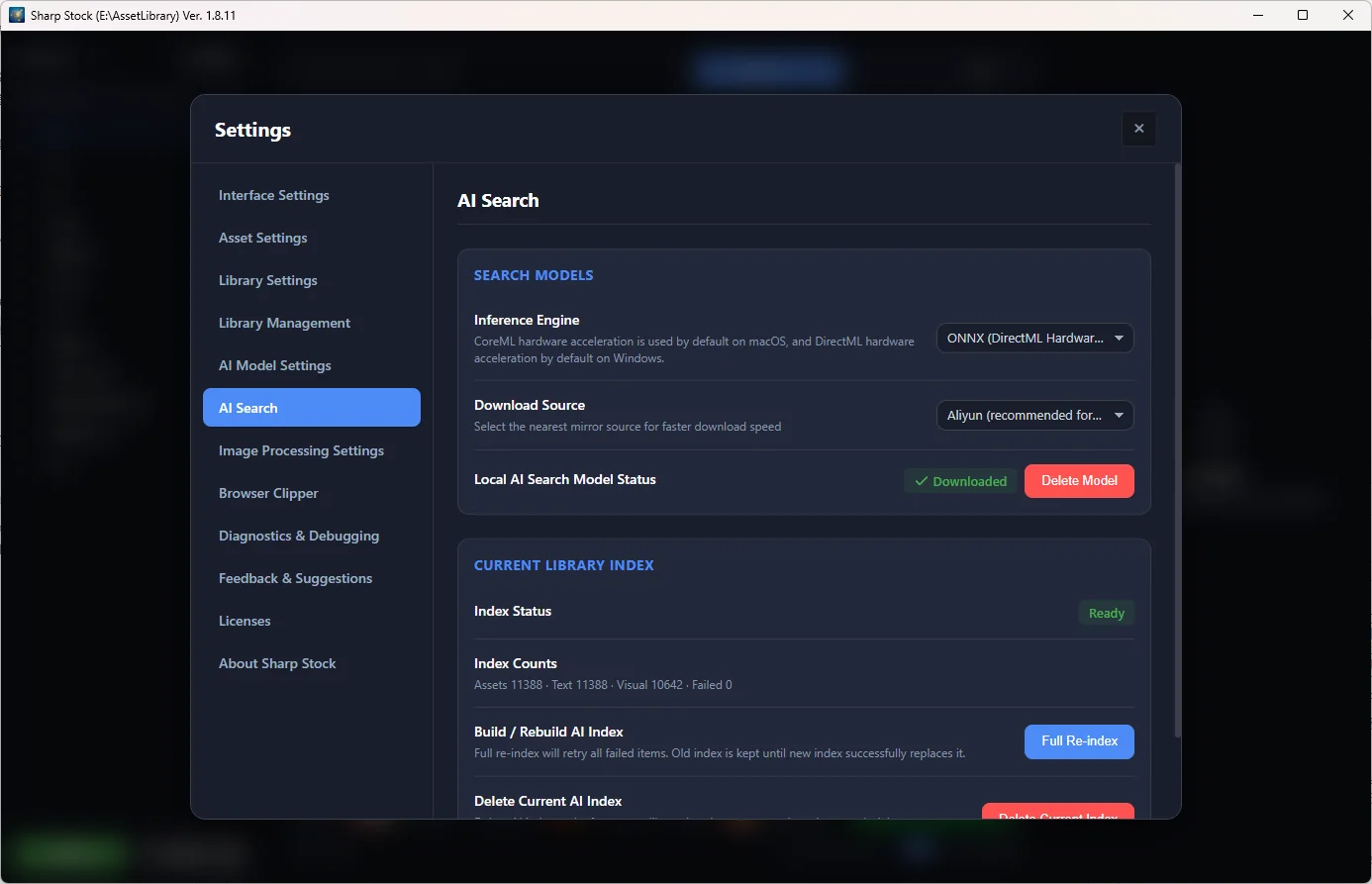
This page manages the model and index used by local reverse image search. AI search runs entirely offline and never uploads your assets. For usage details, see AI Search (Reverse Image Search).
Search Models
- Visual Search Model: Used for reverse image search. Choose a download source (Aliyun / Amazon) and click Download Now. Downloads can be cancelled; the model is shown as Downloaded only after integrity verification passes.
- Delete Model: Requires confirmation. You must re-download the model before using AI search again. Existing indexes are kept.
Current Library Index
- Create Index: Builds the AI index for the current library (required before first use). You can Cancel at any time; an existing index remains usable while rebuilding.
- Full Re-index: Reprocesses every asset and retries previously failed items.
- Delete Current Index: Removes the local index cache (rebuildable; never affects assets, thumbnails, descriptions, or tags).
Other Library Indexes
- Lists historical indexes of other libraries with their disk usage; delete them individually to free space.
7. Image Processing Services
Configure how Tinify (PNG smart compression) works.
- Tinify processing mode: Choose Squoosh (local) or TinyPNG (cloud). When Squoosh is selected, the TinyPNG section below is disabled.
- TinyPNG compression: In TinyPNG mode, enter your API Key for cloud compression from the main interface.
Steam release
The Steam build only offers Squoosh (local); the TinyPNG option and the TinyPNG compression section are hidden, and no API key is required.

8. Browser Clipper
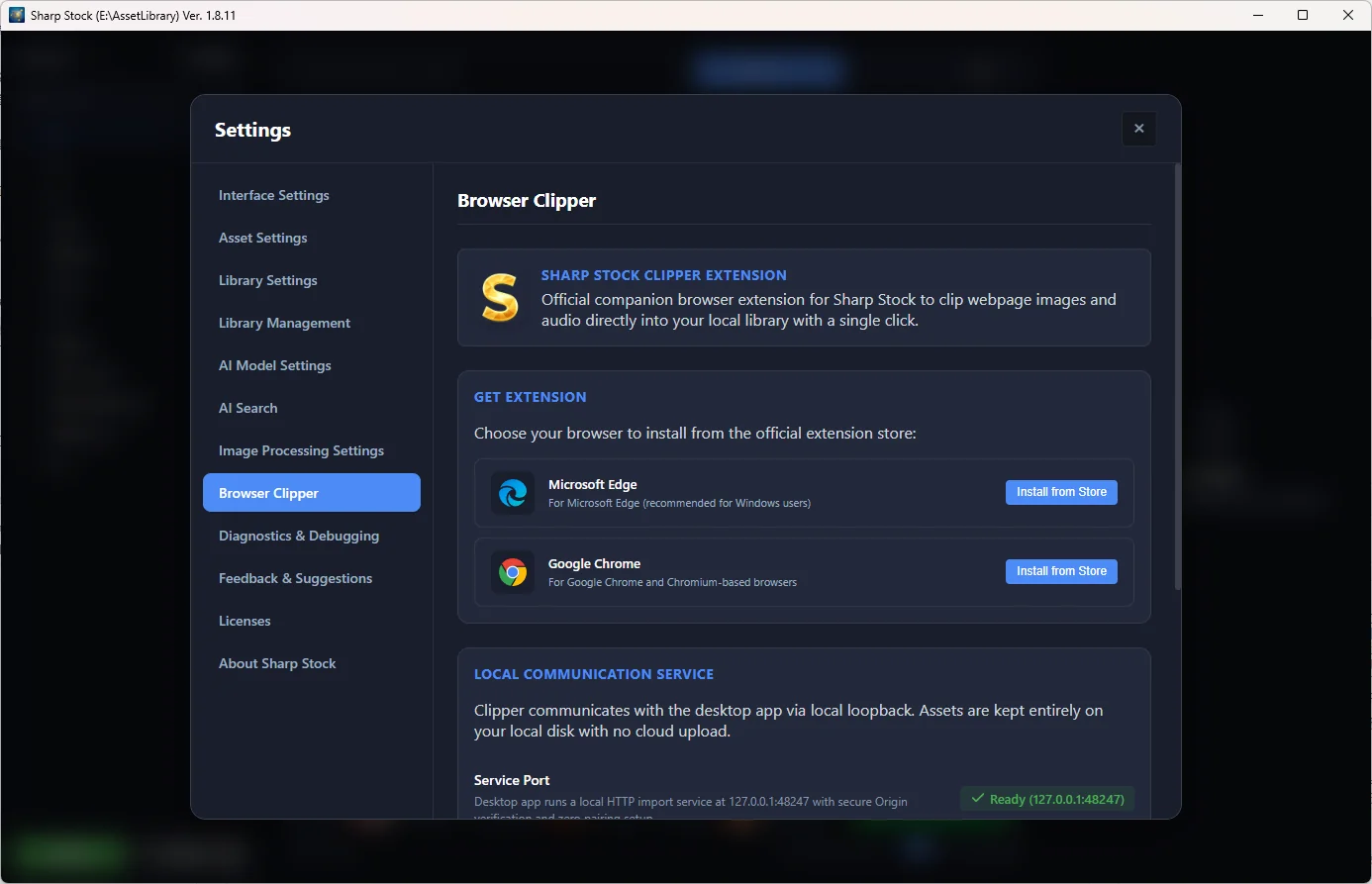
This page introduces the official companion browser extension Sharp Stock Clipper, allowing you to easily clip web images and audio directly into your library.
- Extension Overview: Sharp Stock Clipper runs in mainstream browsers such as Chrome and Edge. It supports quick single-asset import, context menu import, and batch page asset extraction, while automatically preserving original source webpage URLs.
- Get the Extension:
- You can also select Microsoft Edge or Google Chrome in the Sharp Stock Clipper section below the Free Lite / Demo downloads on the homepage to open the corresponding extension store.
- Microsoft Edge Add-ons: Click Install from Store to install directly from the Microsoft Edge Add-ons store (recommended for Windows users).
- Google Chrome Web Store: Click Install from Store to install from the Chrome Web Store.
- Local Service Status: The desktop app runs a secure local import service on port
48247. Clipped files transfer directly on your local computer and remain on your disk without any cloud upload or complex pairing steps. - Quick Start:
- Ensure Sharp Stock is running when clipping assets from your browser;
- Hold Alt and right-click any image on a webpage to quickly import it;
- Click the extension icon in your browser toolbar to preview, filter, and batch import images and audio from the page;
- Click the View Documentation button in the upper right to view in-depth clipping instructions and tips.
9. Diagnostics & Debugging
This page is used for system troubleshooting and viewing execution logs.
- Real-time Execution Logs: Displays recent system operation records to help locate abnormal issues.
- Quick Actions: Supports refreshing logs, copying content to the clipboard, or opening the log storage folder directly.

10. Feedback & Suggestions
You can submit functional suggestions or bug reports to the development team through this entry.
- Detailed Description: Please describe the problem or requirement you encountered as clearly as possible (required).
- Image Attachments (optional): Supports clicking to upload or pressing Ctrl+V to paste screenshots from the clipboard. When a screenshot is present, use the × button at the top-right of the preview area to remove it.
- Submit: When ready, click Send feedback at the bottom of the form.

11. Third Party Licenses
View the open-source license notices for the third-party libraries and components used by this software.
- License Notices: This section centrally displays the open-source license notices (Third Party Notices) of the built-in third-party components. The content is rendered in Markdown for easy review of the open-source license terms each component follows.

12. About Product
View the current software version, update records, and contact information.
- Check for Updates: The system automatically checks for updates on startup. If a new version is released, an indicator will appear above the settings icon. You can also manually click the button to go to the app store and download the latest version.
- Release Notes: We recommend periodically reading the Changelog to learn about new features and improvements.
- Rate Sharp Stock: Microsoft Store, Mac App Store, and Itch.io Lite builds show a Go to Rating button that opens the store matching the current download channel.
