
Search & Filter System
Sharp Stock provides an extremely flexible search and filter system designed to help you locate specific items among tens of thousands of complex assets in seconds.
TIP
Besides regular keyword search, Sharp Stock also includes local reverse image search (visual search). See AI Search (Reverse Image Search) for details.
1. Top Search Center
The search bar is located at the top center of the main interface and is your most frequently used entry point for resource retrieval.
The search box is a unified input that accepts text, pasted images, or images dragged in from your computer. The system automatically chooses the search method based on the content of the box:
- Text: Enter keywords and press Enter or click the Search button to run a text search. Press Ctrl+F (Windows) or ⌘F (macOS) to move focus to the search field and select the current query text. While focus is in the search field, press Esc to clear the query and refresh the list.
- Image (reverse image search): Paste an image (e.g., copied from an image editor or a web page) or drag an image file or library asset file (such as an FBX 3D model) into the search box. When an image or library asset reference is added, any existing text is automatically cleared and a small thumbnail appears in the box. Hover over the thumbnail to preview the image in a floating box. The filename is shown next to the thumbnail (or "Clipboard Image" for pasted images). Click the × button on the right to clear the reference and return to text input.
When dragging files, the interface highlights two separate drop targets: place an image for reverse image search on the top search box, or place files and folders to import on the Item Grid below. Only the target currently under the pointer is highlighted, so confirm the highlighted region before dropping.
- Search Scope Toggle: Click the arrow button (▾) to the right of the Search button to open a small floating menu, then tick the checkboxes to precisely limit the search scope:
- Filename: Matches only original physical filenames.
- Notes: Matches only manually entered or AI-generated description text.
- Tag: Matches only all custom tags associated with the asset.
NOTE
Reverse image search requires the local AI search model and an index for the current library. If these are not ready, clicking Search with an image will show a message and guide you to Settings → AI Search to download the model and create the index.
When the AI search index is enabled, newly saved or modified assets update their search data in the background and may take a short time to appear in AI search results. When closing or switching libraries, the app briefly waits for submitted updates to finish. If that wait times out, it will attempt to recover the search index the next time you open the library.
2. Advanced Search Commands
The search system supports standard logical operators, allowing you to build precise complex queries.
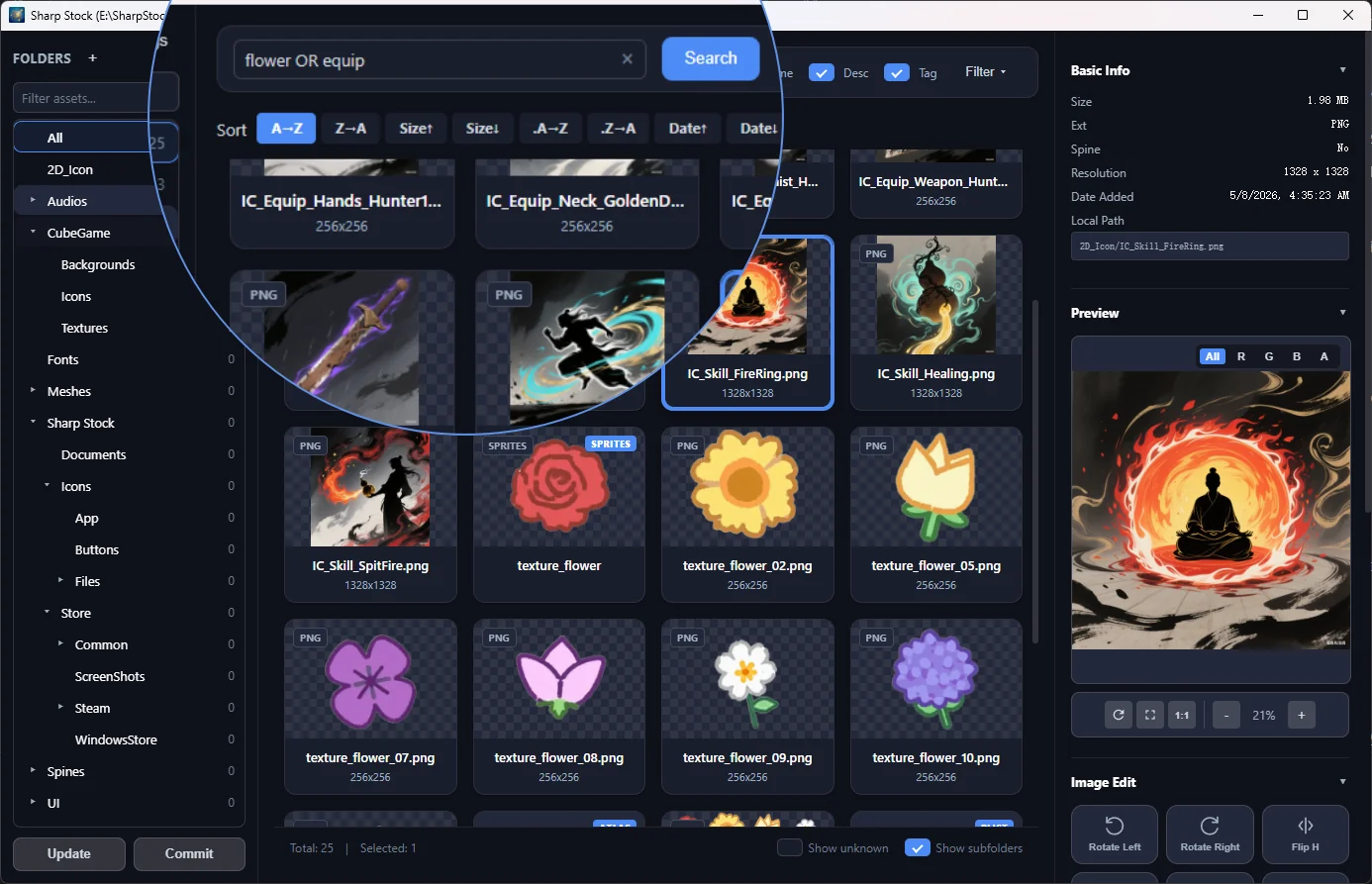
Common Logical Operators
- AND: Default logic. For example, entering
blue iconwill match assets containing both "blue" and "icon". - OR: Use all-uppercase OR. For example, entering
hero OR characterwill match assets containing either keyword. - Exact Phrase: Use double quotes to enclose phrases (e.g.,
"Main Menu") for an exact match.
TIP
Logical operators (AND, OR) must be in ALL UPPERCASE to take effect.
3. Precision Filter Panel
Click the "Filter" icon to the right of the search bar to call up the powerful advanced filter panel.
- Filter by Type: Supports selecting images, audio, Spine animations, 3D models, videos, etc. Multiple categories can be selected at once.
- Filter by Size: Provides multiple file size range filters from
<100Kto>10M. - Filter by Color: Allows you to enter a HEX color (e.g.,
#FF8800), pick a color from the built-in color picker, or click a dominant color swatch in the detail panel. Matching assets are those whose extracted dominant colors are close to the selected color. Use the tolerance dropdown to control the strictness:- Exact: Only assets whose dominant color is very close to the chosen color.
- Similar (default): Assets with a similar dominant color.
- Broad: Looser matching that includes colors within a wider range.
- When a color filter is active, the grid is automatically sorted by color similarity (closest first). Click the
✕next to the color filter to clear it.
- Unknown Asset Filter: A toggle at the bottom of the panel allows you to show or hide files with unrecognizable formats.
- Active Filter Tags: Currently active filter conditions are displayed as tags below the search bar; click
✕to remove them. - Active State Red Badge: When any type, size, or color filter condition is active, a red badge with a white number is displayed on the top-right of the "Filter" button to intuitively signal that filter conditions are applied and show the count of active filters.
- One-click Reset: Clears all selected type, size, and color filters.
4. Quick Action Reference
| Shortcut | Description |
|---|---|
| Ctrl + F | Quickly focus the search box. |
| Enter | Press within the input box to immediately execute the search. |
| Esc | Clear search content or quickly collapse the filter panel. |